

A LITTLE MORE CONTROL
Set it. Let your display sleep.
No trip through system settings each time. Just choose a delay that suits what you are doing.
01
Choose your delay
Start with five minutes or pick any delay from 1 to 60 minutes.
02
Start the countdown
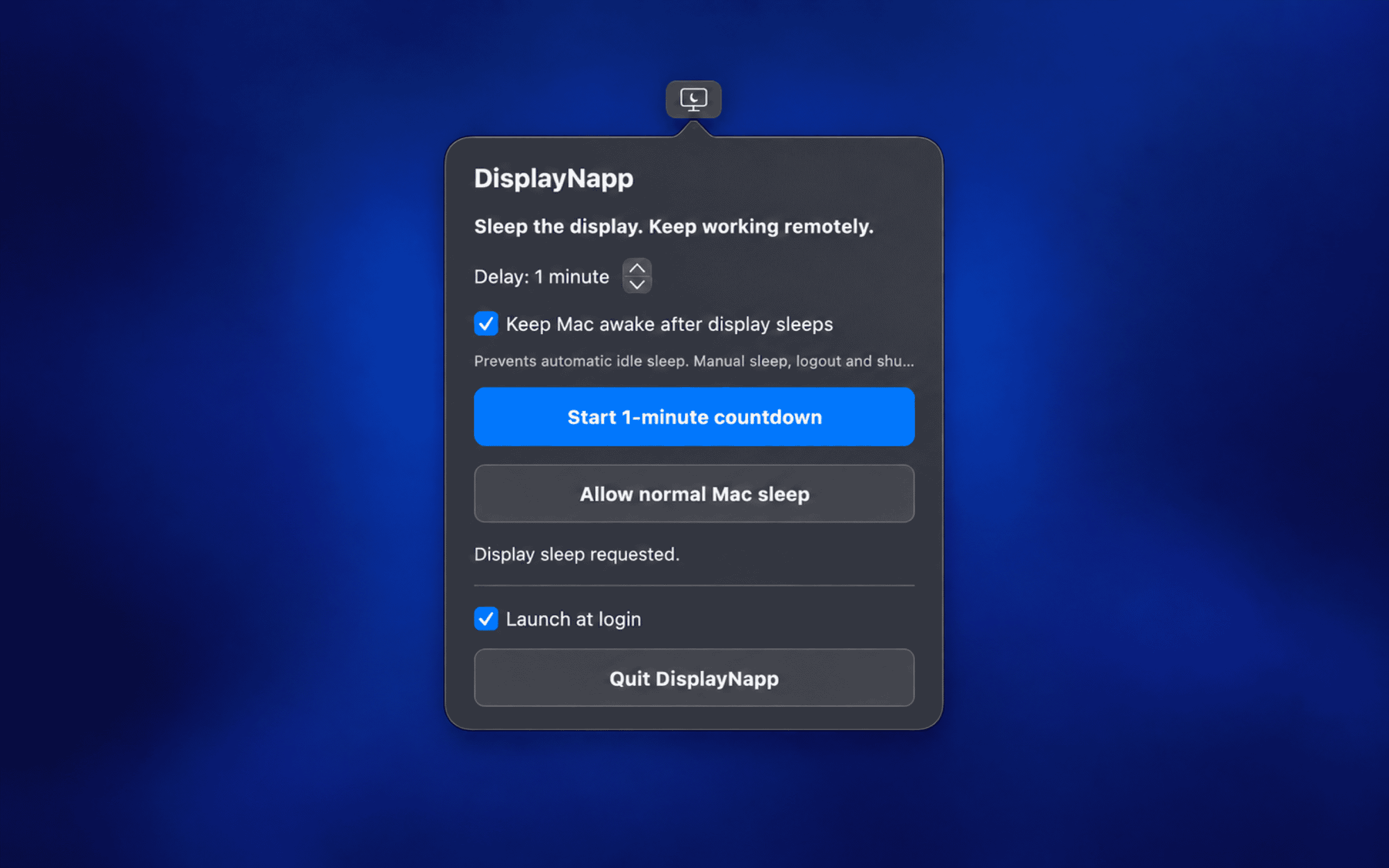
Open DisplayNapp from the menu bar. See the remaining time there as it counts down.
03
Let the display rest
DisplayNapp requests display sleep when the countdown finishes. Cancel before it ends if your plans change.
DISPLAY ASLEEP. MAC AVAILABLE.
A dark screen.
A Mac that keeps going.
A Mac that keeps going.
Turn on “Keep Mac awake after display sleeps” to prevent automatic idle system sleep after the countdown.
When you are finished, choose “Allow normal Mac sleep” to let your usual macOS sleep settings take over again.
Useful wherever your Mac lives.
At your desk
Set a display sleep countdown when you step away from your iMac or desktop Mac.
On your MacBook
Let the display sleep while your Mac stays available. Closing the lid can still put the Mac to sleep.
Over a remote connection
Start a countdown before disconnecting. DisplayNapp keeps counting in the logged in session.
SMALL APP. USEFUL CONTROLS.
Everything close at hand.
Right in your menu bar
Check the countdown without opening another window.
Cancel when you need to
Stop an active countdown before it reaches the end.
Ready at login
Choose to launch DisplayNapp automatically when you log in.
Remembers your preferences
Your selected delay and keep awake setting stay saved on your Mac.
Your Mac, your choice
Keep the Mac awake after display sleep, then release that hold with one button.
Private and local
No account, advertising or analytics. Your preferences stay on your Mac.
BEFORE YOU START
A few practical details.
Does DisplayNapp put the whole Mac to sleep?
It requests display sleep. The optional keep awake setting prevents automatic idle system sleep. Manual sleep, closing a MacBook lid, logout and shutdown can still interrupt the countdown.
Can I keep using my Mac during the countdown?
Yes. The countdown runs while you use your Mac. Existing macOS idle settings may put the display to sleep earlier, and keyboard or mouse activity can wake it again.
Will the countdown continue after I disconnect remotely?
Yes, provided DisplayNapp stays running and your Mac remains logged in and awake. Reconnecting or sending remote input may wake the display again. Great for when you remote control an iMac or MacBook when turning off the monitor is not an option.
Does it change my power settings?
DisplayNapp does not change persistent macOS power settings. It uses a temporary awake hold while needed, which is released when you cancel, allow normal Mac sleep or quit the app.
What information does it collect?
DisplayNapp does not send personal information, preferences or usage data to Walk a Mile Media. It saves the selected delay and keep awake preference locally.