01
Local network control
Manage your screens from your Mac over your local network.
02
Cached playback
Players download their media for reliable playback if the connection drops.
03
Flexible scheduling
Calendar events, weekly rotations and temporary content.
ONE CLEAR WORKSPACE
Made for the way
you use your screens.
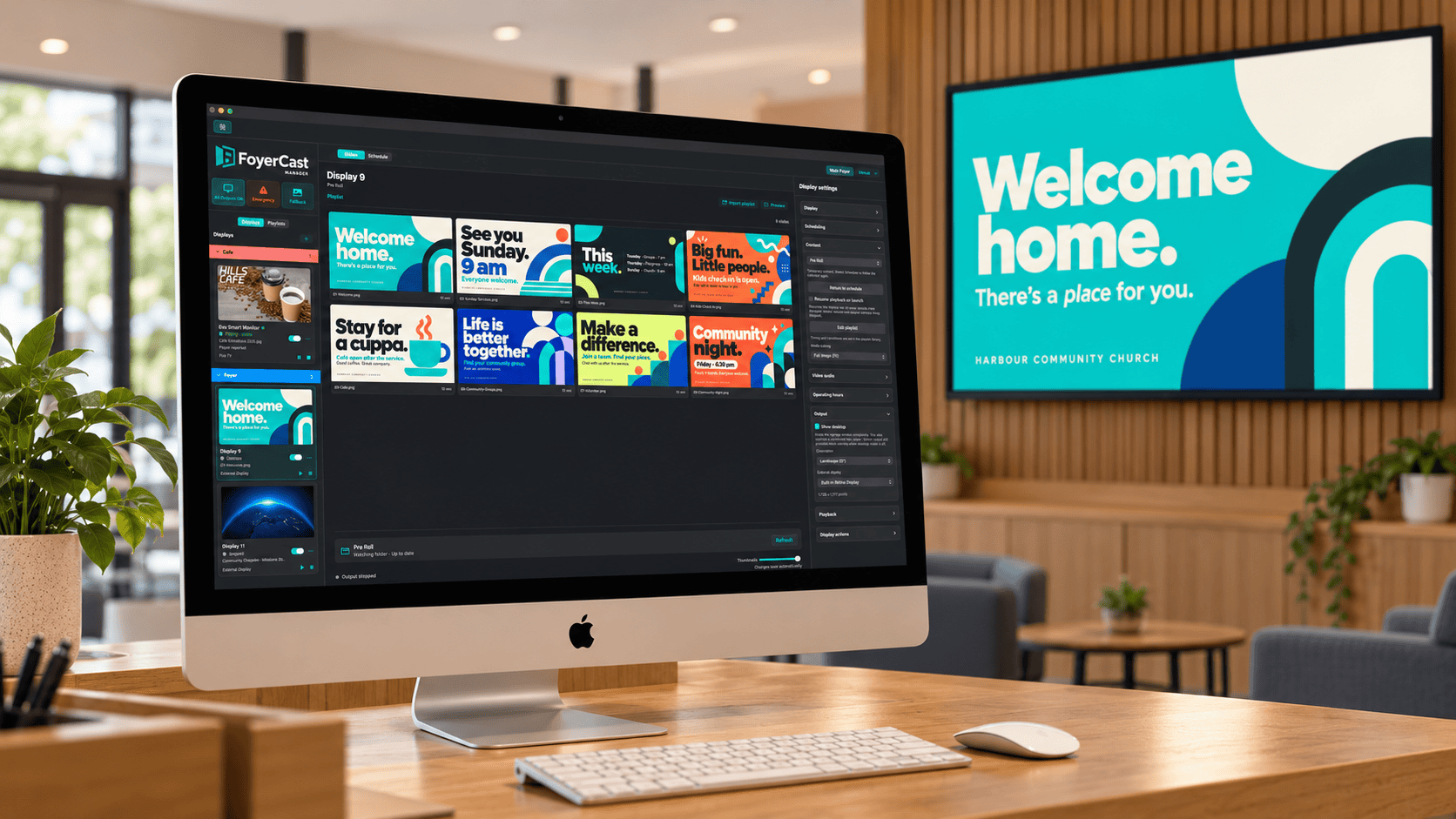
From a welcome screen in the foyer to announcements across the building, keep everything organised in one place.
01
Manage every display
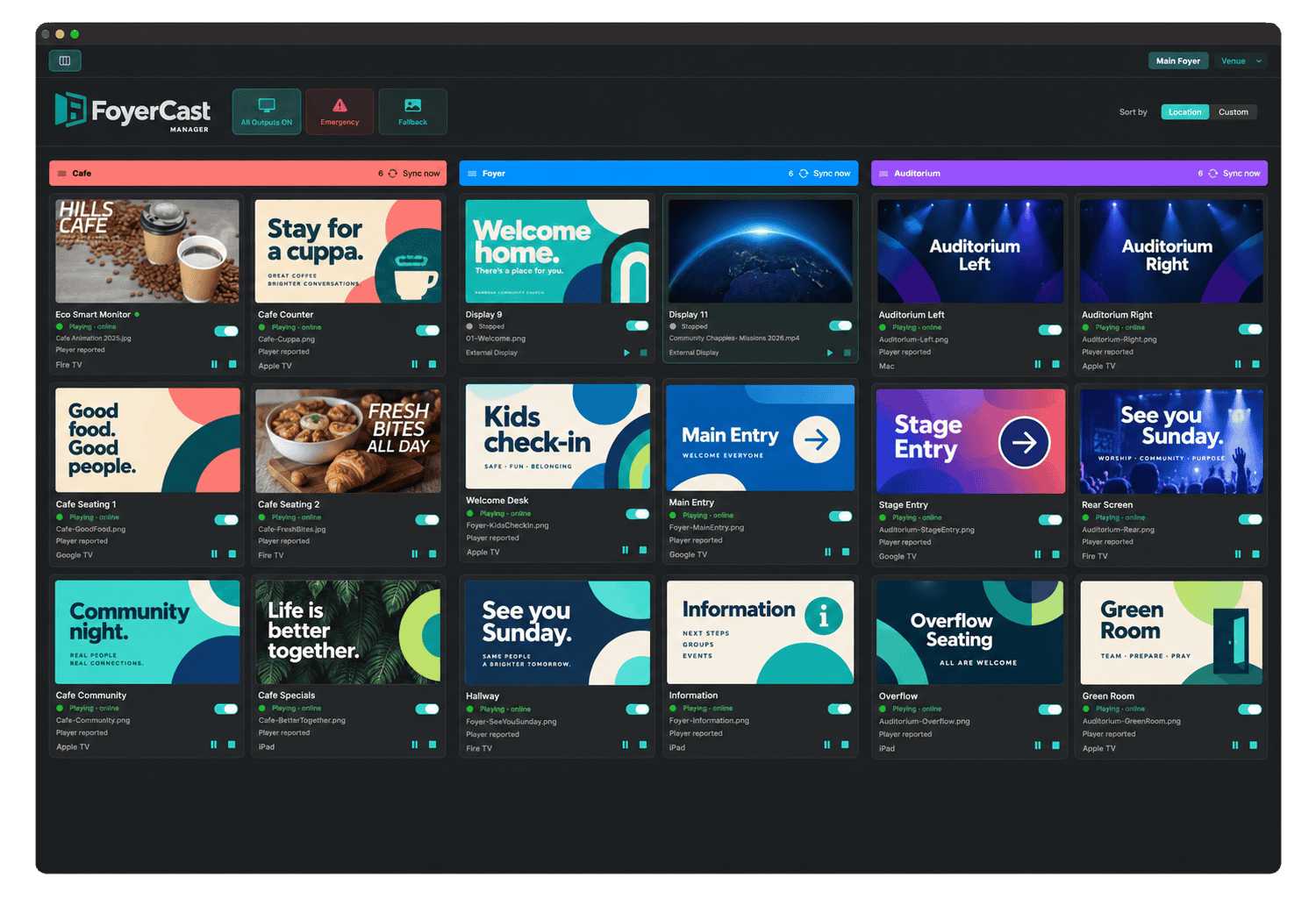
Organise your displays by venue and location. Choose what plays on each screen, or manage several together.
02
Content that keeps moving
Play images, videos and multipage PDFs. Link playlists to watched folders, including locally synced Google Drive and Dropbox folders.
03
Set it. Schedule it.
Plan calendar events and repeating weekly rotations. Use temporary content, then return to the current schedule.
EXPLORE THE FEATURES
More than a slideshow.
Create playlists, connect your displays and keep everything running from one clear workspace.
Playlists and media
- Images, videos and multipage PDFs.
- Playlists linked to watched folders.
- Photo-dump slideshows that update as files change.
- Use locally synced Google Drive and Dropbox folders.
- Sort by filename, shuffle or drag slides into a custom order.
- Adjust individual slide durations and image scaling.
- Temporarily disable slides without deleting them.
- Set content start and expiry dates.
Scheduling and rotations
- Date and time scheduling for individual displays.
- Schedule a full playlist, individual slide or clock.
- Weekly sequential rotations that continue looping.
- Choose the weekdays each rotation runs.
- Add multiple timed content changes within a rotation.
- Weekly calendar and Agenda views.
- Fill gaps with a playlist, clock or blank screen.
- Temporary overrides that return to the current schedule position.
Displays, locations and venues
- Manage multiple displays from one Mac.
- Organise displays into colour-coded locations.
- Keep multiple venues running while switching between them.
- Duplicate venue setups.
- Individual screen controls and an all-outputs master switch.
- Multiple operating-hour periods for each screen.
- Landscape and portrait output in all four orientations.
- Display Wall overview alongside the normal Workspace.
Playback controls
- Play, pause and stop each display independently.
- Start a slideshow from a selected slide.
- Crossfades with adjustable transition times.
- Fade in and out when starting and stopping playback.
- Choose whether video length or slide duration takes priority.
- Short videos can hold their last frame until the slide changes.
- Sync Now for displays sharing the same playlist.
- Optional autoplay when Manager reopens.
Clocks and countdowns
- Create multiple named clocks and countdowns.
- Customise fonts, colours, sizes and backgrounds.
- Choose 12-hour or 24-hour time, seconds and date.
- Use image backgrounds with Fit, Fill and optional dimming.
- Count down to a specific date and time.
- Assign clocks directly or include them in schedules and rotations.
Live video and production
- USB webcams and compatible HDMI or SDI capture devices.
- Live video on the Manager’s local external output.
- Optional live audio with volume controls and an audio meter.
- CaptionKit overlays for local live video.
- Optional crossfades between playlists, clocks and live video on local output.
- Bitfocus Companion control and feedback through the FoyerCast module.
FoyerCast Remote
- Control Manager from an iPhone, iPad or Android phone or tablet.
- Connect over the same local network.
- Play, pause and stop individual displays.
- Choose playlists and return displays to their schedules.
- Reorder slides and adjust slide durations.
- Enable or disable individual slides.
- Check reported playback and connection status.
- Grant each Remote the permissions it needs.
Player options
- FoyerCast Player for Mac.
- Apple TV player.
- Fire TV player.
- Android TV and Google TV player.
- iPad player.
- Direct external display output from you Mac.
- Pair players with Manager and keep them paired between sessions.
- Network players download media for cached playback.
Monitoring and troubleshooting
- See player connection and playback status.
- See the filename reported by each player.
- Check when a player last reported its status.
- View connection fault details and copy them for troubleshooting.
- Request a screen capture from supported players.
- Generate playback reports on demand.
- Save daily reports covering dropouts, recovery and playback issues.
- Monitor screens together in Display Wall.
Fallback and emergency content
- Choose a fallback image for unavailable content.
- Activate fallback for one display or all displays.
- Create custom emergency presets.
- Use emergency images, videos or playlists.
- Activate emergency content across all screens.
- Clear emergency content and return to ordinary playback.
- Confirmation prompts for manual emergency and fallback actions.
Backups and recovery
- Automatic settings backups every 24 hours.
- Choose your own backup destination folder.
- Back up settings only or include media files.
- Keep the last 14 days of daily backups.
- Restore a saved setup from a backup.
- Save a safety backup before restoring.
- Optional Manager recovery after an unexpected exit.
Security and everyday use
- Local network management without a cloud service.
- Separate pairing for players and Remote devices.
- Control Remote access to displays, playlists and emergency actions.
- Protect Manager editing with a PIN.
- Optional Touch ID on supported Macs.
- Automatic editing lock after inactivity.
- Searchable settings and a first-launch guided tour.
- Built-in manual, feedback and crash-report tools.
FoyerCast Manager runs on Mac. Remote control requires Manager to be running and reachable on the same local network. Player capabilities vary by device. Cached players can continue their downloaded content during a connection loss; future schedule changes require Manager. Live video and CaptionKit overlays are limited to Manager’s local output, and CaptionKit requires internet access. Background phone notifications are not included in this beta.
FOYERCAST REMOTE
Your screens.
Within reach.
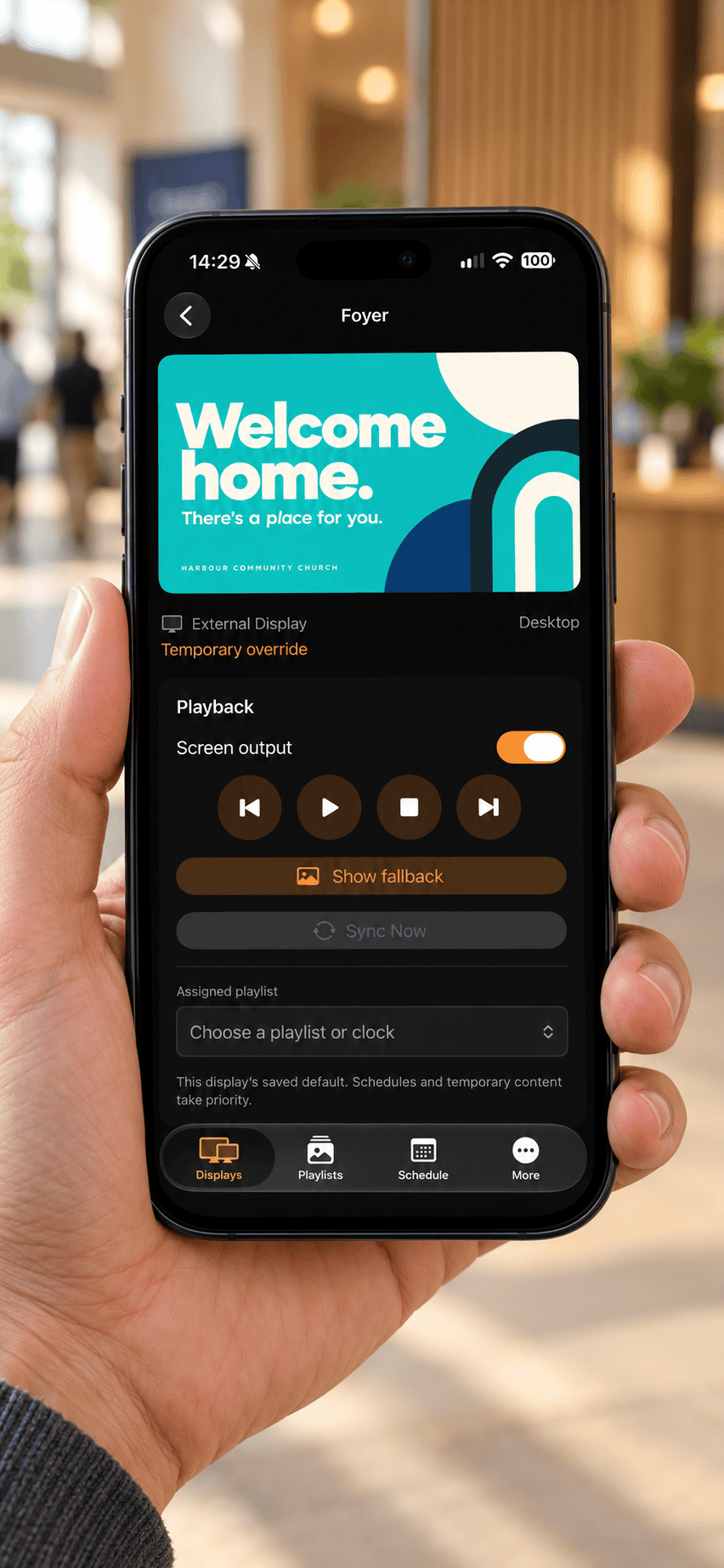
Control your displays from your phone or tablet, wherever you are on the same local network.
- Play, pause and stop individual displays.
- Choose a display’s playlist and return to its schedule.
- Reorder slides, adjust durations and enable or disable content.
- Check reported playback and connection status.
Available for iPhone, iPad, and Android phones and tablets. FoyerCast Manager must be running and reachable on the same local network. Access depends on the permissions you grant each Remote.
MONITOR AND MANAGE
Know what’s playing.
See connection status and the content reported by each player. Use Display Wall for a wider view across your venue.
Keep daily playback reports and back up your setup to a folder you choose.
A PLAYER FOR YOUR SPACE
Use the screens you already have.
FoyerCast Manager runs on Mac. Connect compatible player devices over your network, or use a directly connected external display. Device and operating system requirements vary.
GET STARTED
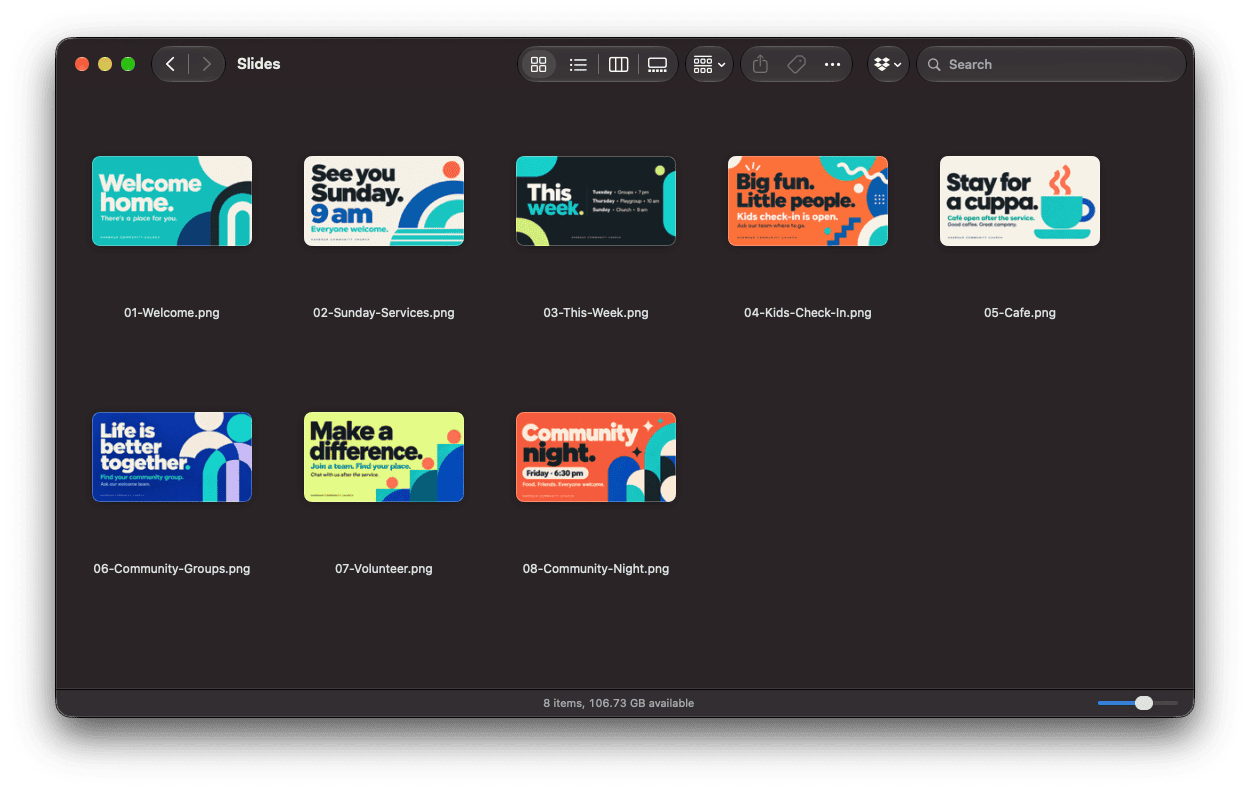
From folder to screen.
1
Choose your content
Import a folder of images, videos or PDFs into a playlist.
2
Connect your displays
Pair your players, name your screens and assign their content.
3
Press play
Start playback now, or build a schedule for later.
EARLY ACCESS
Help shape FoyerCast.
Try the beta in your space and tell us what works, what needs attention and what would make your week easier.
Tell us about your Mac, your player devices and how many screens you would like to run.
This opens a Google Form, please give as much information as possible. Thank you.
*FoyerCast Manager requires macOS Ventura 13 or later and supports both Intel and Apple Silicon Macs.
Intel Macs can manage network players. An Apple Silicon Mac with an M1 chip or newer is recommended for direct HDMI output,
particularly when using transitions or live video.
Performance depends on the Mac, media resolution and number of active outputs.

Built For You By Walk a Mile Media.