
MultiRough app icon

MultiRough

Your first pass. Your rules.

A rough multicam editor for Final Cut Pro.

Choose your cameras, keep your main audio and set the shot lengths. MultiRough gives you an editable first pass to finish in Final Cut Pro.

Download MultiRough for Mac Installation instructions

Free to use. Optional contributions welcome.
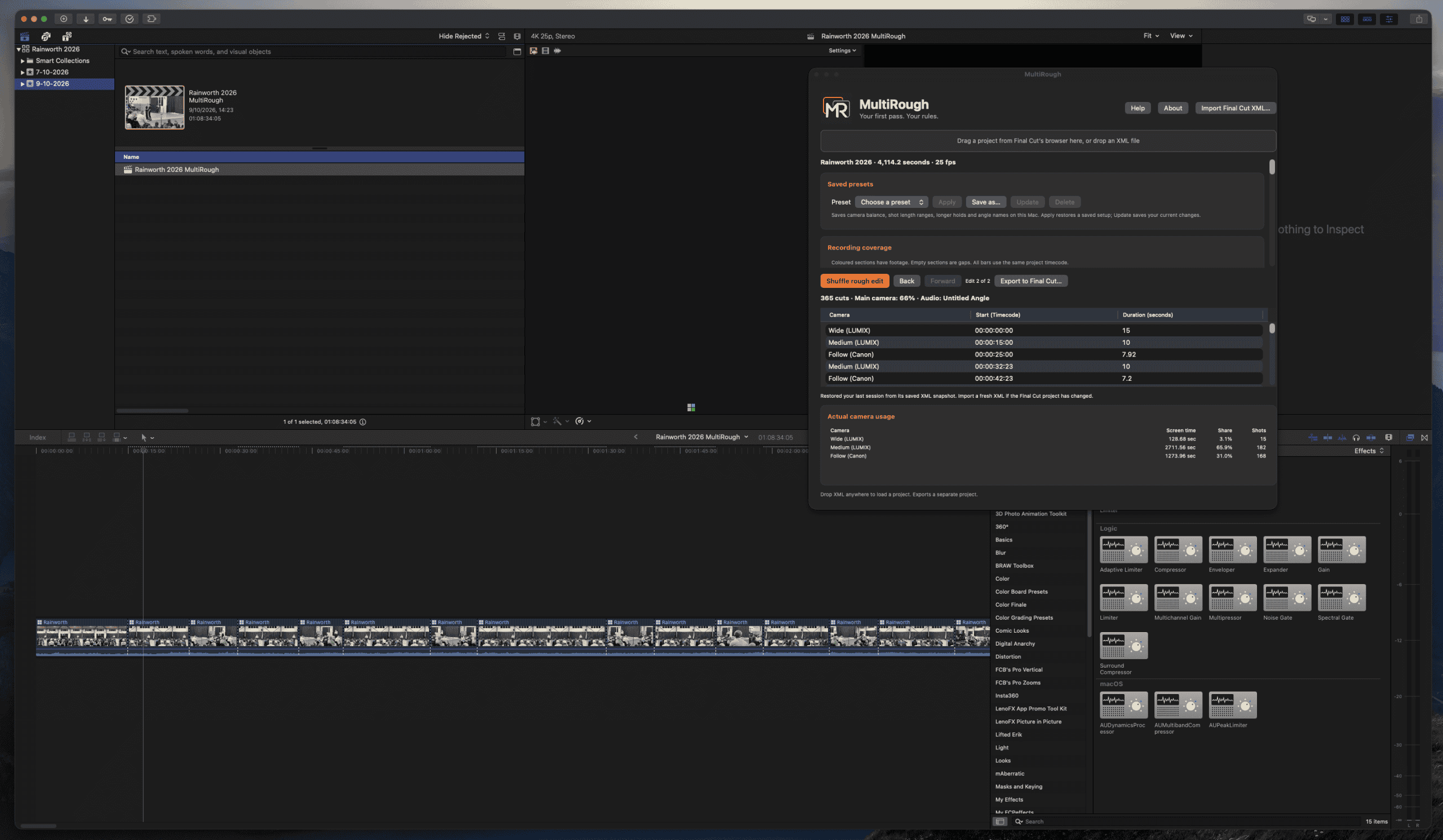
A starting point for your multicam edit

MultiRough creates an editable first pass of your Final Cut Pro multicam project, using your camera preferences and shot lengths.

Give your main camera more screen time, include the other angles you want and keep the same audio throughout. Generate a pass, shuffle it for another option or go back to the one you preferred.

Your original project stays intact. The rough edit becomes a separate Final Cut Pro project, ready for you to review and adjust.

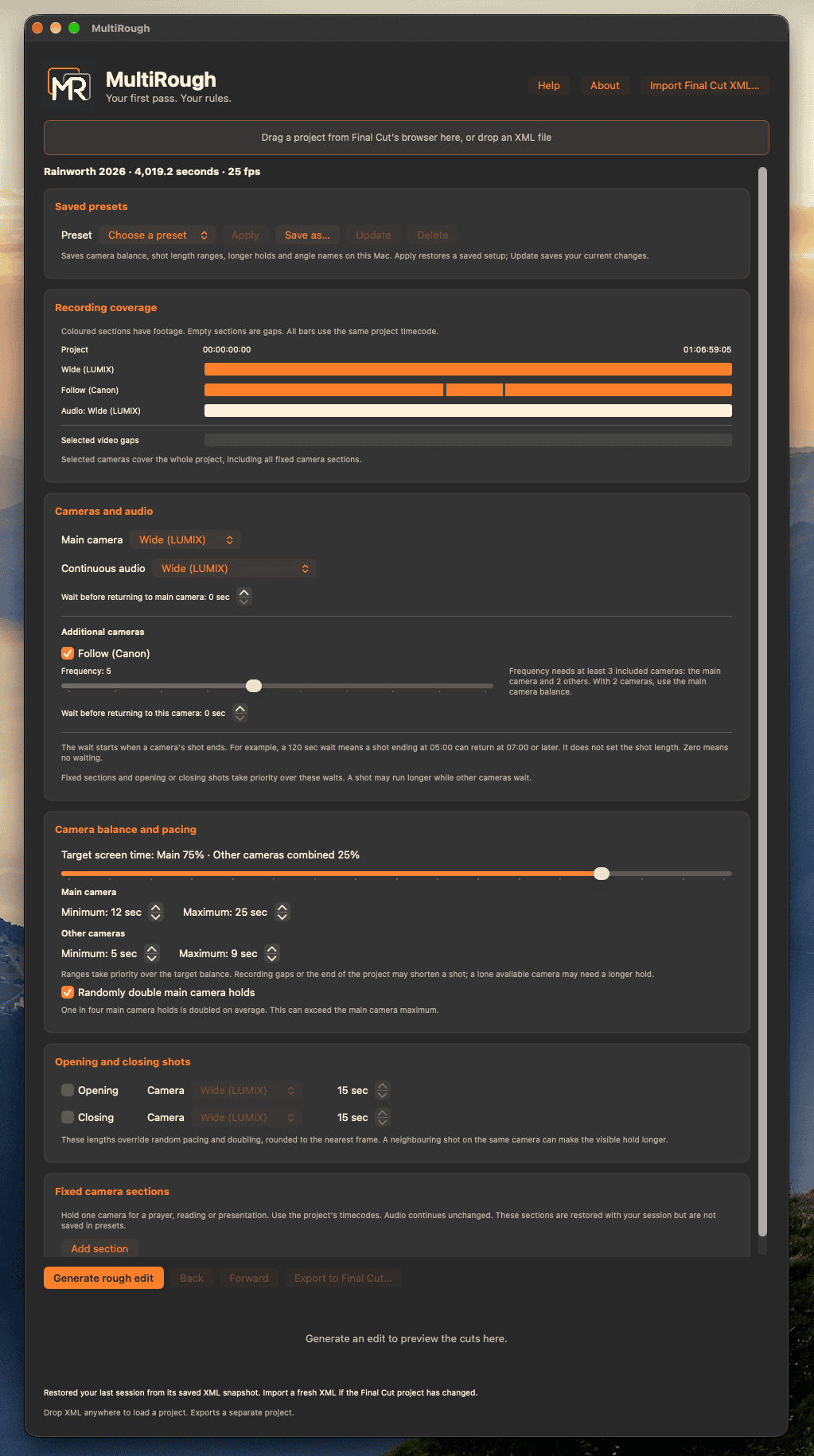
Set the edit to suit your footage

  • Choose a main camera and include additional angles.
  • Select a continuous audio source, including a separate recorder angle.
  • Set minimum and maximum shot lengths.
  • Adjust camera balance, frequency and return waits.
  • Choose opening and closing cameras and their shot lengths.
  • Hold a particular camera during fixed sections.
  • Save presets and compare passes with Back and Forward.
  • Read the included, searchable offline manual.

From multicam clip to rough edit

  1. Prepare your project. Synchronise your recordings in Final Cut Pro and place one uncut multicam clip in the timeline.
  2. Bring it into MultiRough. Drag the project from Final Cut Pro’s browser into the extension, or import an exported XML file.
  3. Choose your settings. Select cameras, continuous audio, shot lengths and any fixed camera sections.
  4. Generate a pass. Review the cuts and camera usage. Shuffle for another option, or return to an earlier pass.
  5. Finish in Final Cut Pro. Export the XML and import the separate rough edit project. Play it through and adjust the cuts.

Stand Alone App

Final Cut Pro Extension

Install MultiRough

  1. Download MultiRough. If it comes in a disk image, open the disk image first.
  2. Copy MultiRough.app into your Applications folder.
  3. Open MultiRough once from Applications.
  4. Quit and reopen Final Cut Pro.
  5. Click the Extensions button on the left side of Final Cut Pro’s toolbar and choose MultiRough.

You can also open MultiRough as a standalone app and import a .fcpxml file or .fcpxmld bundle.

For the full manual, click Help inside the app or extension.

Before you start

  • A Mac running macOS 14 or later.
  • Final Cut Pro and your original media.
  • One uncut multicam clip filling the project timeline.
  • At least two video angles.
  • One audio angle covering the whole project.

Wait for media importing to finish before sending the project to MultiRough.

Speed changes, split audio and an already cut main timeline are not currently supported. The included manual explains the supported settings and common errors.

Frequently asked questions

Does MultiRough use AI?

MultiRough chooses cuts from your settings and recording coverage. It does not watch the footage, identify the speaker or use captions to time the cuts.

Will it change my original project?

No. MultiRough exports a separate rough edit project. Your original project stays intact, and the new camera cuts remain editable in Final Cut Pro.

Can I use more than two cameras?

Yes. Include the video angles you want to use. Frequency settings let you favour particular additional cameras when the main camera and at least two other cameras are included.

Can I keep audio from a separate recorder?

Yes. Put the recording in an angle of your multicam clip, then choose that angle as Continuous audio. It must cover the entire project.

Does it export a finished video?

MultiRough exports an editable XML project and a settings record. It sends the XML to Final Cut Pro for import. You review and finish the edit there before exporting your video.

Can I use it outside Final Cut Pro?

The standalone app can generate cuts from a Final Cut Pro XML export. Final Cut Pro is still needed to prepare the multicam project and review the finished rough edit.

Is there a subscription or paid support?

MultiRough is free to use. Donations are optional and help support development. Documentation is included, and feedback is welcome. Personalised support and response times are not guaranteed.

Support MultiRough

MultiRough is a free tool from Walk a Mile Media. If it saves you time, you’re welcome to make a contribution towards its development.

Contributions are optional and do not include additional support.

Make a contribution

Share your feedback

Found a bug or have a suggestion? Let us know what happened and what you were trying to do.

For a bug report, include the MultiRough version, your macOS and Final Cut Pro versions, and the exact error message.

Open the feedback form