


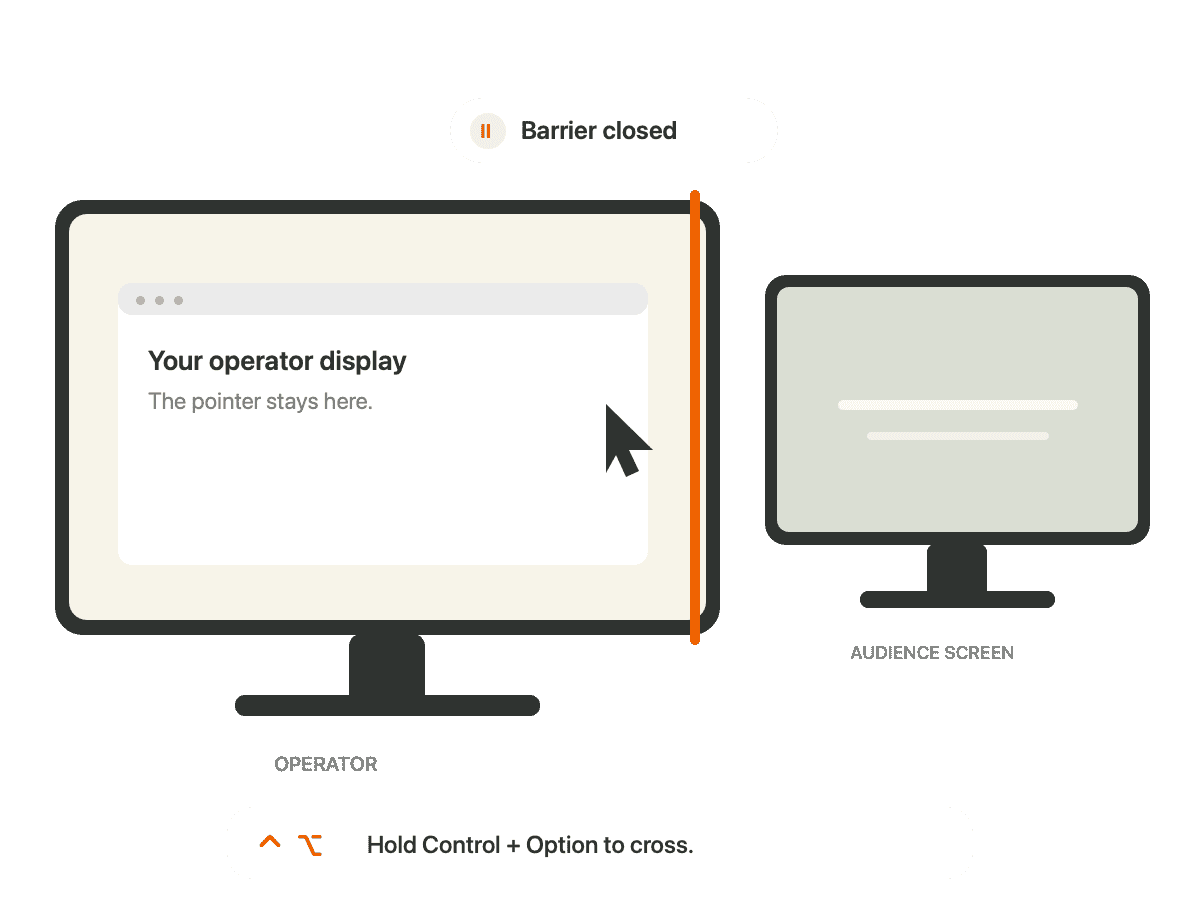
A BARRIER WHEN YOU NEED IT
Stay on your screen.
Cross when you choose.
For church screens, presentations, livestreams and any Mac with more than one display.
01
Choose your screen
Select the operator display where your mouse should stay. Choose barriers for the left, right, top or bottom edge.
02
Work as usual
The pointer stops at the protected edges. Move back into your screen whenever you like, without clicking.
03
Hold to cross
Hold Control + Option to open the barriers. Release the keys to close them and return the pointer to your operator display.
A LITTLE MOUSE THAT KEEPS YOU INFORMED
Orange means
you can cross.
Squeebar lives in your menu bar. Its mouse turns orange while you hold the shortcut, so you can see when the barriers are open.
Click the mouse to pause protection, return the pointer or open settings.
Control + OptionHold to open. Release to close.
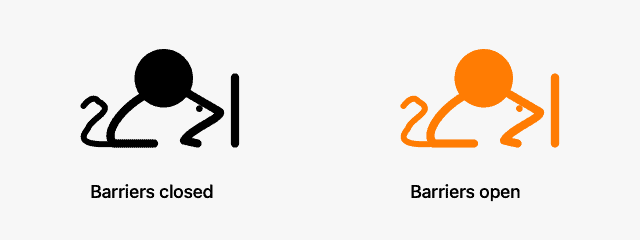
The actual menu bar artwork, enlarged.
SET IT UP FOR YOUR DESK
Simple controls.
Useful choices.
Choose the barriers and shortcut that suit the way you work. Squeebar remembers your settings for next time.
- Protect individual edgesBlock the sides that lead to your other displays.
- Choose a hold shortcutUse Control + Option, or choose another combination in settings.
- Control the returnChoose whether releasing the keys brings the pointer back to the operator display.
- Keep it readyEnable launch at login and pause protection from the menu bar.
GETTING STARTED