

01
Local network control
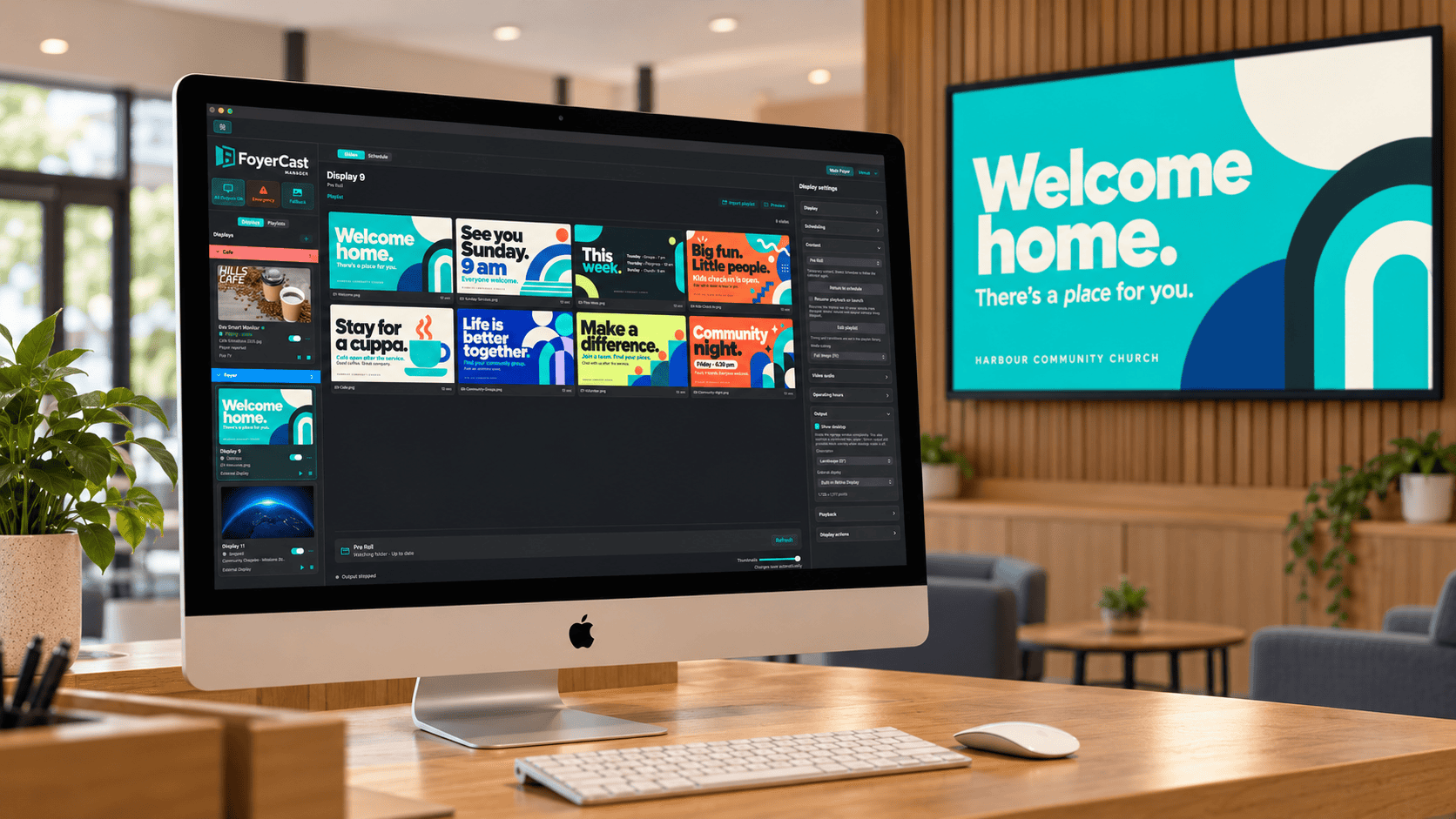
Manage your screens from your Mac over your local network.
02
Cached playback
Compatible players download media for playback during connection loss. Cache limits vary by device.
03
Flexible scheduling
Calendar events, multiple weekly rotations, reusable templates and temporary content.
ONE CLEAR WORKSPACE
Made for the way
you use your screens.
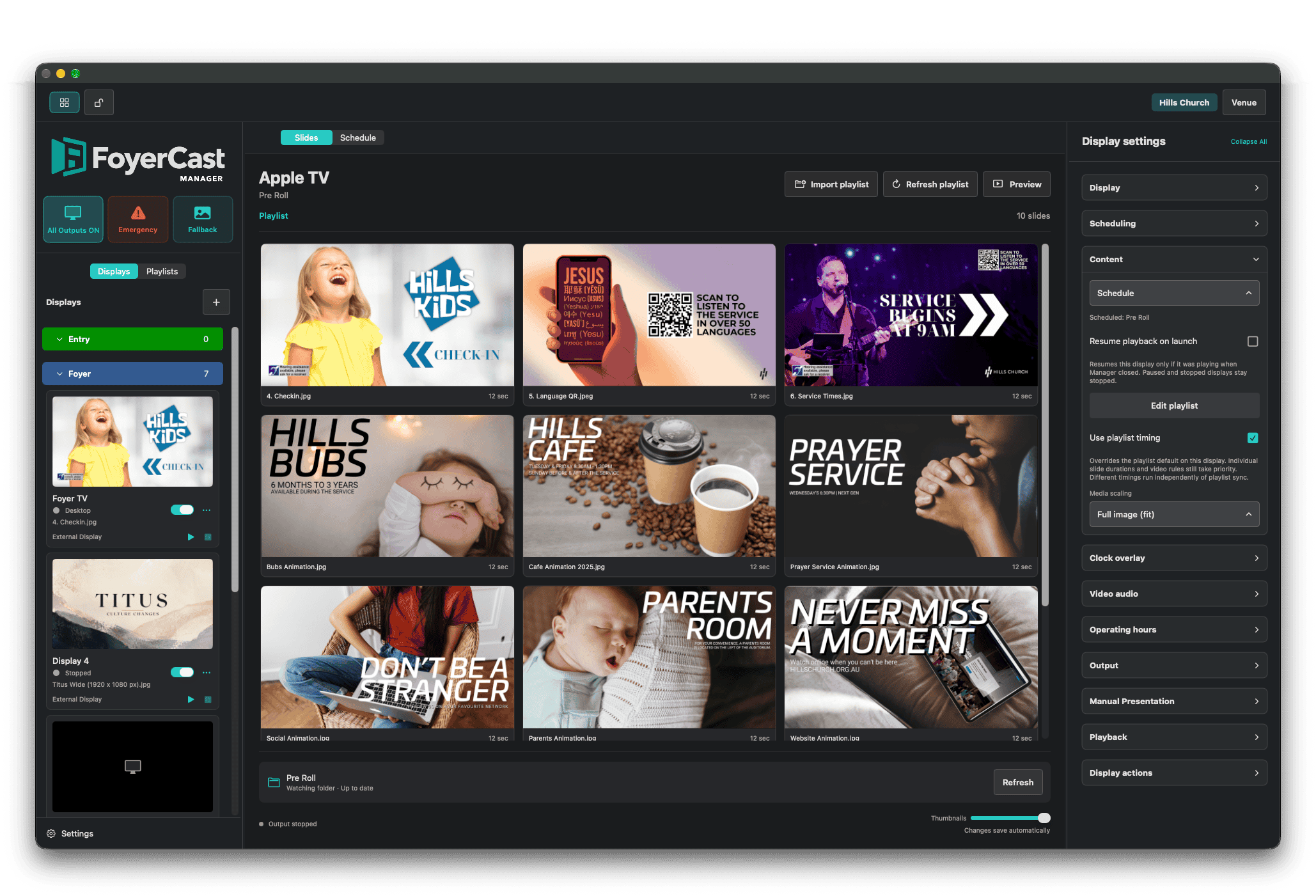
From a welcome screen in the foyer to announcements across the building, keep everything organised in one place.
01
Manage every display
Organise your displays by venue and location. Choose what plays on each screen, or manage several together.
02
Content that keeps moving
Play images, videos and multipage PDFs. Link playlists to watched folders, including locally synced Google Drive and Dropbox folders.
03
Set it. Schedule it.
Plan calendar events and multiple weekly rotations. Reuse rotation templates, or take over with Manual Presentation and return to the current schedule when finished.
EXPLORE THE FEATURES
More than a slideshow.
Create playlists, connect your displays and keep everything running from one clear workspace.
Playlists and playback
- Play images, videos and multipage PDFs from watched folders.
- Use locally synced Google Drive and Dropbox content.
- Run automatic slideshows or advance slides with Manual Presentation.
- Adjust timing, transitions and video playback behaviour.
- Create clocks and countdowns, including overlays on other content.
Scheduling and rotations
- Schedule playlists, individual slides and clocks.
- Create multiple rotations for different days and times.
- Save templates and duplicate rotation weeks.
- Plan in the weekly calendar and grouped Agenda views.
- Use temporary content, then return to the current schedule.
Displays, locations and venues
- Manage displays across multiple venues from one Mac.
- Organise screens into colour-coded locations.
- Arrange displays and location groups in Display Wall.
- Control individual outputs, operating hours and slide timing.
- Show live video, optional audio and CaptionKit on local output.
FoyerCast Remote
- Control displays from an iPhone, iPad or Android phone or tablet.
- Choose content, control playback and sync matching displays.
- Present with selectable thumbnails, navigation and video controls.
- Reorder slides, adjust durations and enable or disable content.
- Restrict each Remote to selected venues, displays and permissions.
Player options
- Connect Mac, Apple TV and iPad players.
- Use Google TV, Android TV, Fire TV or Roku players.
- Use a directly connected external display from Manager.
- Keep players paired and view their reported playback status.
- Cache media on compatible players, subject to platform storage limits.
Monitoring and protection
- Check player status, current filenames and reported versions.
- Review connection faults, playback reports and supported screen captures.
- Activate fallback content or named emergency presets.
- Back up your setup daily and restore saved backups.
- Protect editing with a PIN or supported Touch ID, and search built-in help.
FoyerCast Manager runs on Mac. Remote control requires Manager to be running and reachable on the same local network. Player capabilities vary by device. Compatible cached players can continue downloaded content during a connection loss; new content and future schedule changes require Manager. Roku requires Manager whenever it starts, and offline playback cannot be guaranteed. Apple TV cache can also be reclaimed by the operating system. Live video and CaptionKit overlays are limited to Manager’s local output, and CaptionKit requires internet access. Background phone notifications are not included in this beta.
FOYERCAST REMOTE
Your screens.
Within reach.
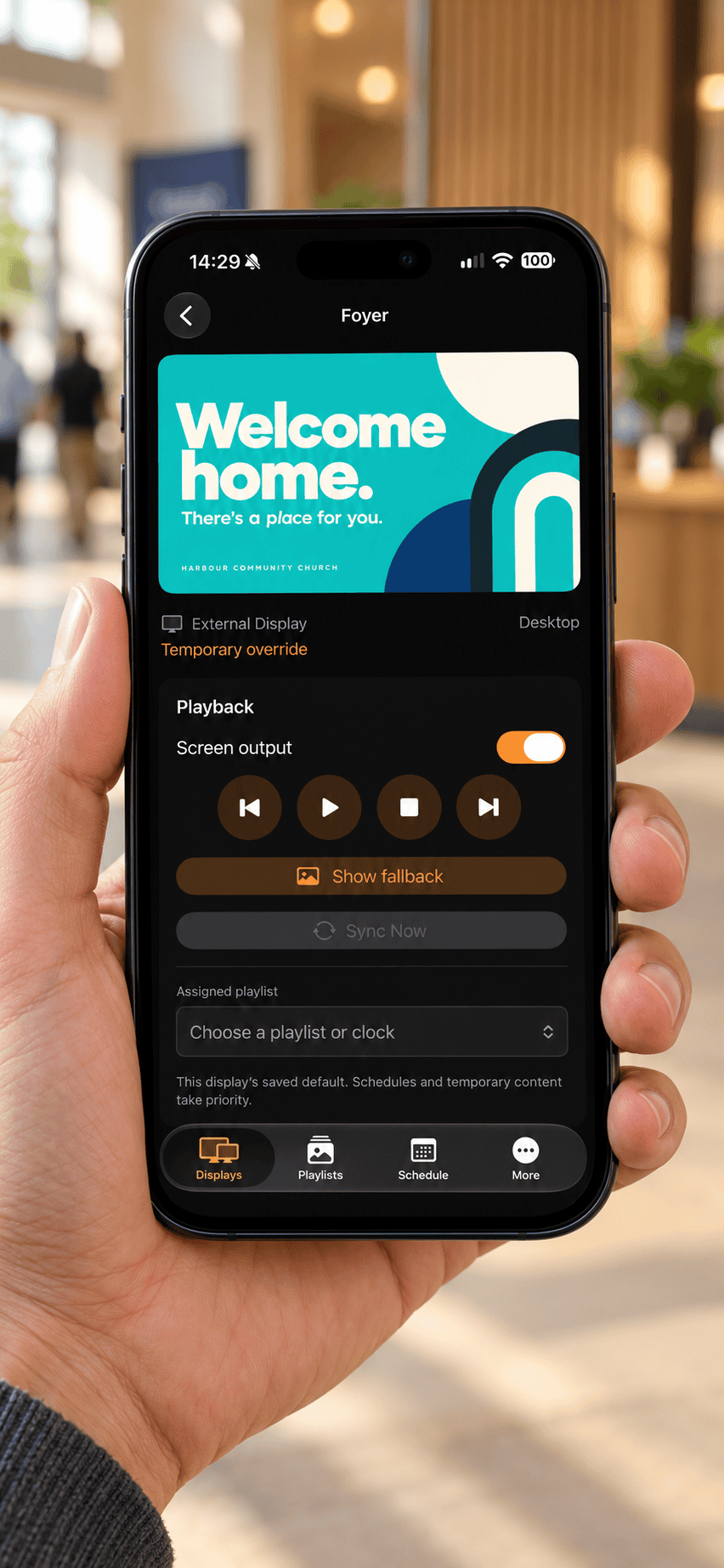
Control your displays from your phone or tablet, wherever you are on the same local network.
- Play, pause and stop individual displays.
- Choose a display’s playlist and return to its schedule.
- Run a Manual Presentation with selectable slides, larger navigation buttons and video controls.
- Set a display’s default slide duration without changing the shared playlist.
- Sync matching displays or activate fallback content.
- Reorder slides, adjust durations and enable or disable content.
- Check reported playback and connection status.
- Filter by venue, collapse location groups and switch between saved Manager connections.
Available for iPhone, iPad, and Android phones and tablets. FoyerCast Manager must be running and reachable on the same local network. Limit each Remote to the venues, displays and controls it needs.
MONITOR AND MANAGE
Know what’s playing.
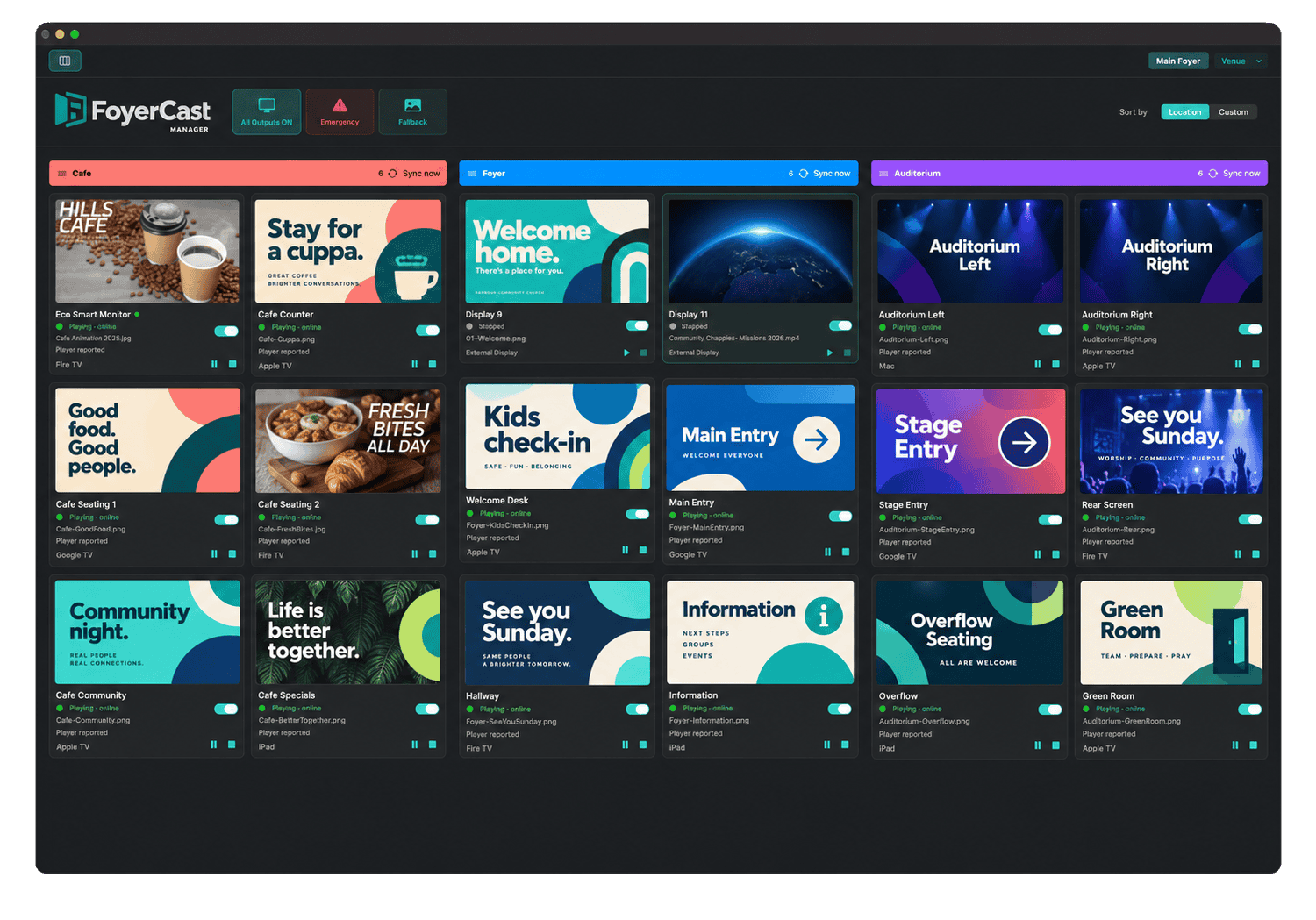
See connection status and the content reported by each player. Use Display Wall for a wider view, with colour-coded location groups, custom ordering and location-level Sync now controls.
Check player versions, request supported screen captures, keep daily playback reports and back up your setup to a folder you choose.
A PLAYER FOR YOUR SPACE
Use the screens you already have.
FoyerCast Manager runs on Mac. Connect compatible player devices over your network, or use a directly connected external display. Device and operating system requirements vary. Roku uses session caching and needs Manager at startup; offline playback cannot be guaranteed.
Got a device or a TV not on this list? Let us know and we will see what we can do.
GET STARTED
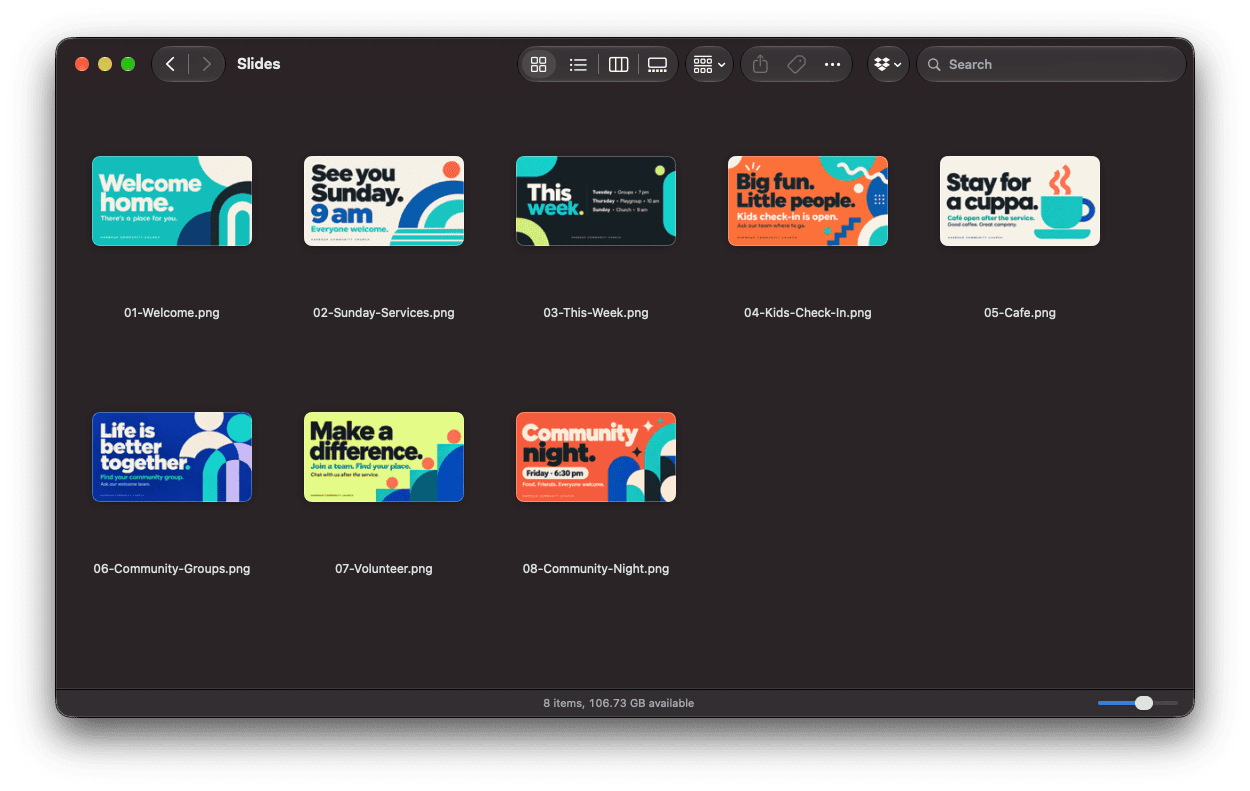
From folder to screen.
1
Choose your content
Import a folder of images, videos or PDFs into a playlist.
2
Connect your displays
Pair your players, name your screens and assign their content.
3
Press play
Start a slideshow, build a schedule or take control with Manual Presentation.
EARLY ACCESS
Help shape FoyerCast.
Try the beta in your space and tell us what works, what needs attention and what would make your week easier.
Tell us about your Mac, your player devices and how many screens you would like to run.
This opens a Google Form, please give as much information as possible. Thank you.
*FoyerCast Manager requires macOS Ventura 13 or later and supports both Intel and Apple Silicon Macs.
Intel Macs can manage network players. An Apple Silicon Mac with an M1 chip or newer is recommended for direct HDMI output,
particularly when using transitions or live video.
Performance depends on the Mac, media resolution and number of active outputs.